> documentation
How Kyanja works
Every feature, from your first web page to a multi-phone cluster — explained step by step.
Getting started
First launch and navigation
In the app: Startup · Main menu
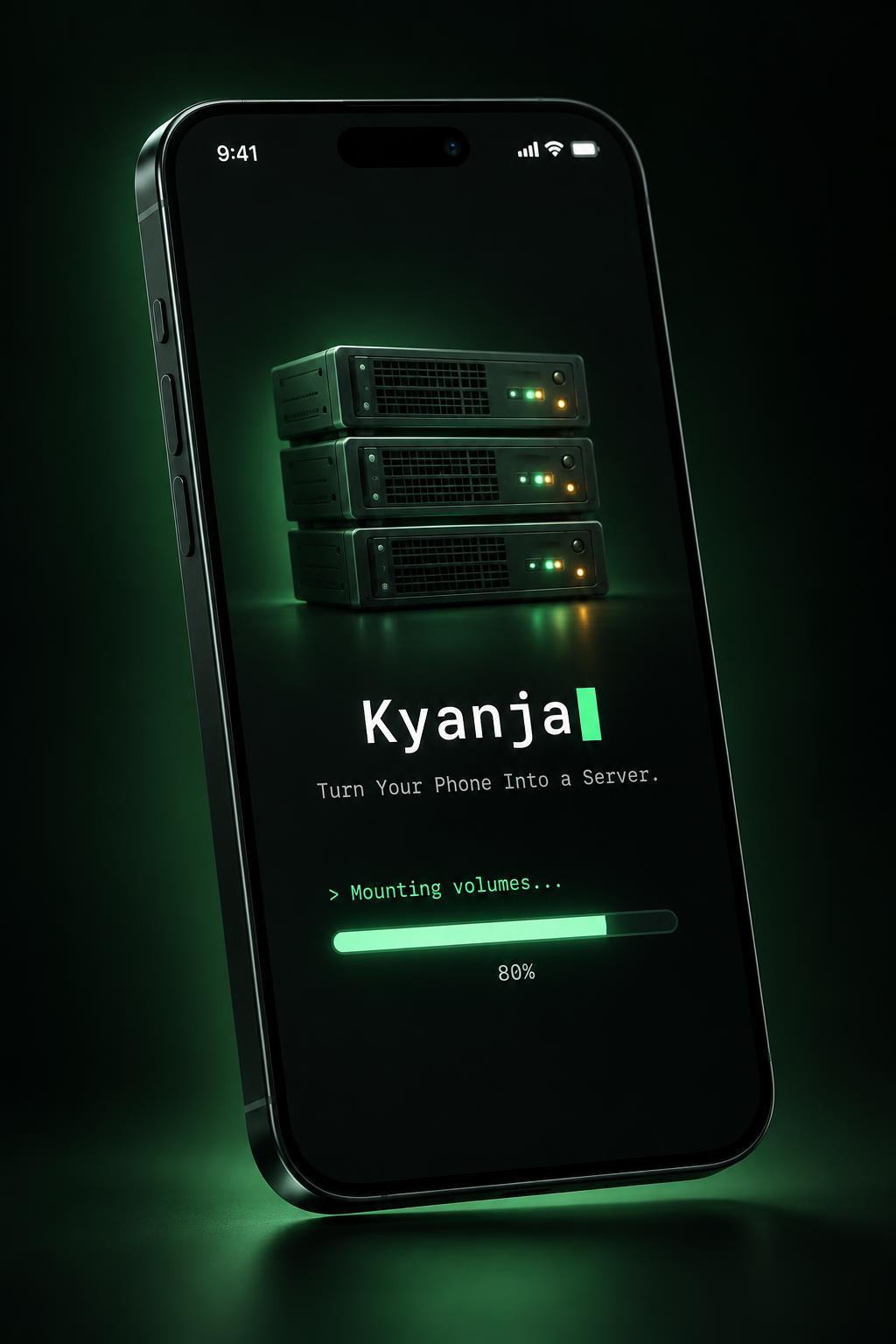
Kyanja boots, asks you for a PIN, then opens the Server page.
- 1Wait for the Kyanja startup sequence, then create and confirm your mandatory PIN. Keep it safe.
- 2Unlock to open Server. Use Server, Network, Hosting, Terminal and Settings in the bottom menu (wider screens use a side menu).
- 3Open the hamburger menu (top left) for Usage and Help. Help → How to use this app lists every guide in setup order and is searchable.
- 4Turn the phone sideways with auto-rotate on. Use the Back arrow or Android Back to leave a guide or close the menu.
Check the result
Main pages stay in the bottom menu, Usage and Help in the hamburger menu. SPD, SIG and STB stay visible at the top.
Requirements & limits
Native Android app. The hosted web placeholder is not the running phone server. Android permissions and device restrictions still apply.